
Looking below the surface of Git - what the heck is a tree?
You may or may not have heard about trees in Git, but you've definitely worked with them! This post provides an overview of what trees are, how they fit together and walks through an example.


While working on my series building a Git-backed REST API, I’ve really been getting into the internals of Git (see part 2 - git protocols). I’m going to digress a little from the series this week to talk about some of those internals, specifically trees.
Everyday users of Git will be familiar with concepts like branches, commits and tags. But you could go an entire career without having to interact directly with trees, even though many git commands will manipulate them in some way.
But before we get into trees, let’s talk a little about objects.
What are objects?
Almost everything in git is stored as an object, a piece of data identified by an SHA1 hash.
As an example, the content of a file is stored as a blob, preceded by a short header. You can compute the hash for a blob using the hash-object command:
$ echo "Hello" | git hash-object --stdin
e965047ad7c57865823c7d992b1d046ea66edf78
This means that any file containing the exact text “Hello” will always be identified by the hash e965047ad7c57865823c7d992b1d046ea66edf78.
By default, hash-object will treat the input as a blob, but it also supports the -t flag to specify other types. These types are blob, commit, tag and tree.
What is a tree?
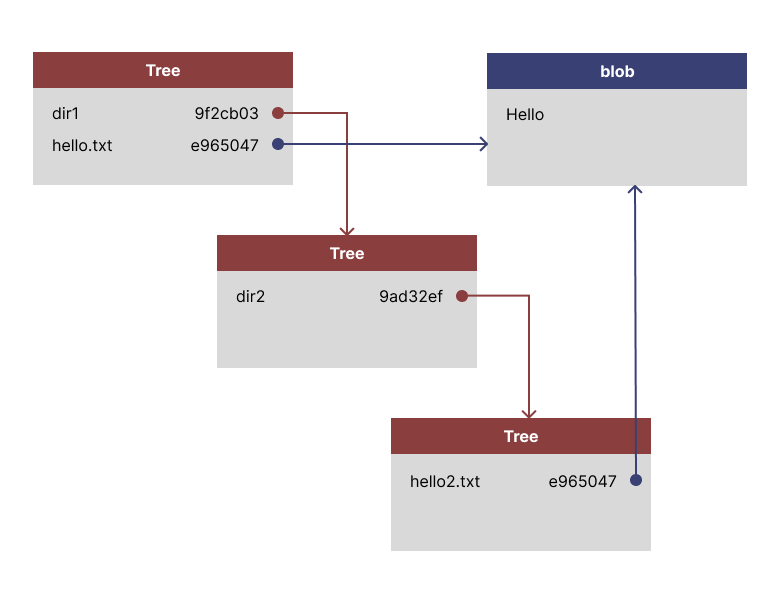
A tree object is how Git recursively builds up directory structures. Each tree represents the content of a single directory organized by name. These names are mapped to the hashes of other trees (directories), or blobs (files).
A directory structure may look like this:
.
├── dir1
│   └── dir2
│       └── hello2.txt
└── hello.txt
For simplicity, both hello1.txt and hello2.txt both contain only the text “Hello”. The Git trees for this directory structure would be arranged as below. Notice how the text files both point to the same blob.
Let’s explore a repo!
Now we have a general idea of what trees are and how they fit together, let’s work through an example. Fire up your terminal and run the commands below to set up a new repo with our directory structure.
mkdir repo && cd repo
git init
echo "Hello" > hello.txt
mkdir -p dir1/dir2
echo "Hello" > dir1/dir2/hello2.txt
git add .
git commit -m "Add files"
We’re going to use cat-file to explore the objects in this repo. This command allows you to look at the contents of any object given its hash. This isn’t exactly cating a file, but objects are stored as files somewhere, I suppose (specifically under .git/objects if you want to poke around there).
We’ll use the -p flag to pretty-print each object. You could replace the flag with an object type, but for trees, this won’t be particularly human friendly.
The commit we created will be stored at HEAD, so let’s look at the contents of this commit.
$ git cat-file -p $(git rev-parse HEAD)
tree 17215dd53d5ea8bf536c0ba9c2d1d662ef081c4f
author Tom Elliott <...> 1766439004 -0500
committer Tom Elliott <...> 1766439004 -0500

Add files
Most of the output here will be familiar, similar to what you might see when using git log. But the first line (starting tree) doesn’t usually appear in porcelain commands. This line gives us the hash for the commit’s tree: a recursive representation of all the files in the repo at this commit. If we had more than one commit, we’d also have a parent line (or sometimes multiple parent lines) that specifies the commit before this one, letting you walk back through the history of the current branch.
Let’s look at the contents of this tree (we can copy just part of the hash):
$ git cat-file -p 17215dd
040000 tree 9f2cb03fb156f7168d199f22bfd76ba3fc5a317a    dir1
100644 blob e965047ad7c57865823c7d992b1d046ea66edf78    hello.txt
We see entries for all the files in the current directory, along with hashes for their objects.
We can view the text file:
$ git cat-file -p e965047ad
Hello
Or the tree for dir1:
$ git cat-file -p 9f2cb03f
040000 tree 9ad32ef3a2b3b48f993c828614bc63d8f34cc415    dir2
We can then drill down further into dir2:
$ git cat-file -p 9ad32ef
100644 blob e965047ad7c57865823c7d992b1d046ea66edf78    hello2.txt
Why Trees?
Git is a great example of content-addressable storage. Because objects are identified and stored based on a hash of their contents, you will never have duplicate copies of the same objects. Our text files containing “Hello” always ended up pointing to the same object, no matter where they were in the tree.
This concept extends to the trees themselves. Directories with the same contents will be represented by the same tree. As we make changes in a repo, any directories we didn’t touch can still be referenced by the same hash. In a large repo, a change to a single file will only impact the objects for that file and any trees in its path.
Throwing commits into the mix, any commits that represent the same set of files will point to the same tree object. This can be handy for some reverts.
There are some other clever things happening on disk, but overall this makes for a pretty efficient way to store the history of a source repo!